BallEngine

The online
bouncing ball simulator

Set the physics, pick a container, press record. A bouncing ball simulator in your browser, made for short-form video.
  • Runs in your browser
  • Exports vertical 9:16 video
  • Free plan to start
Ball Simulator
Modes you can export
11
Export frame rate
60fps
Maximum resolution
4K
Native vertical canvas
9:16

What it does

A ball simulator is only useful if the run it produces holds attention. The controls here map to the things that actually change how a clip performs: how fast the ball accelerates, how many balls are on screen at once, how tight the container is, and what the collisions sound like.

Direct physics control

Gravity, bounciness, bounce randomness and ball weight are plain numeric fields. Change one, watch the run change immediately.

Speed that escalates

Set a starting speed and a build-up rate so a run gets faster as it plays. This is what keeps a loop watchable past the first few seconds.

Balls that multiply

Accumulate lets one ball become hundreds at a steady pace, with a Max balls cap so the frame stays readable.

Saved configurations

Store a look you like and reload it later. Consistency across uploads matters more for a channel than any single clip.

Ball Simulator

How to make a bouncing ball video

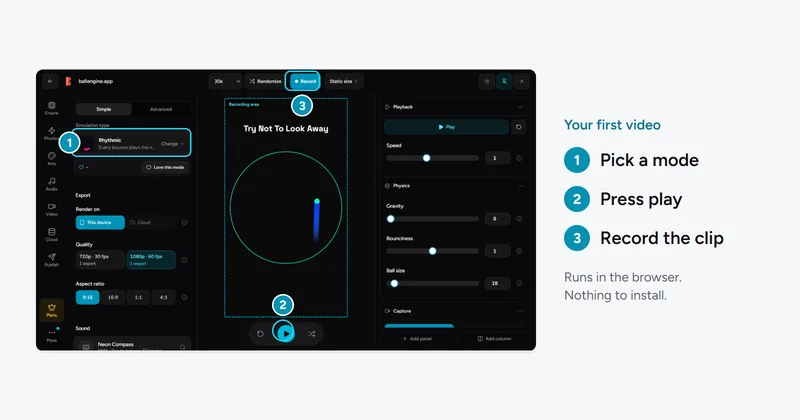
A first export takes a few minutes. These are the steps in the order the studio presents them.
  1. 1.

    Pick a simulation mode

    Start from Accumulate if you want balls to multiply, or Escape if you want a single ball working its way out of rotating rings. The mode sets which rules are active before you touch anything else.

  2. 2.

    Set the container

    Choose the arena shape and its starting size. A tighter arena produces more collisions per second, which reads as more energetic but also more chaotic.

  3. 3.

    Tune gravity and bounciness

    Gravity runs from 0 to 0.5 and bounciness from 0 to 2.0. Values above 1.0 add energy on every impact, so the run accelerates on its own without any speed settings.

  4. 4.

    Add sound

    Attach a MIDI file or a song and each collision advances to the next note. Silent physics clips underperform against the same clip with audio mapped to impacts.

  5. 5.

    Record and export

    Render to a vertical 9:16 file at up to 4K. The export runs off the main thread, so the preview stays responsive while it works.

Settings reference

Every control below is a real field in the studio panel for this mode, with the range it accepts.

Core physics

ControlRangeWhat it changes
Gravity0 to 0.5Downward acceleration per frame. Zero produces a weightless run where balls travel in straight lines between impacts.
Bounciness0 to 2.0Restitution. Below 1.0 the run loses energy and settles; above 1.0 it gains energy on every contact.
Bounce Randomness0 to 1.0Jitter added to the reflection angle so repeated collisions do not fall into a visible loop.
Ball Weight0.1 to 10Mass used in collision response. Heavier balls displace lighter ones instead of deflecting off them.
Starting Arena Size10 to 800Radius of the container at frame zero.

Speed and growth

ControlRangeWhat it changes
Starting Speed0 to 5.0Initial velocity applied when the run begins.
Speed Build-up Rate0 to 0.1How quickly velocity climbs over the run. The main lever for making a clip escalate.
Maximum Speed Limit0 to 200Hard ceiling. Without one, a high build-up rate eventually moves balls further than one frame can render smoothly.
Size Growth Rate0 to 2.0Ball radius increase per second, for runs where the ball outgrows its container.
Maximum Ball Size5 to 1000Ceiling for growth runs. Reaching it can trigger a break effect.

Multiplication

ControlRangeWhat it changes
Genesis Count1 to 100How many balls the run opens with.
Max Population1 to 5000Upper bound on concurrent balls. Past roughly 1,500 the frame reads as texture rather than individual objects.
Spawn Amount1 to 50New balls created per qualifying collision.
Spread Angle0 to 360Arc the new balls are emitted into.
Spawn Gap10 to 5000 msCooldown between spawn events, which stops a single frame producing a population explosion.

Why creators use BallEngine

Most bouncing ball tools are physics demos with a record button bolted on. This one is built the other way round, starting from what a short-form clip needs and exposing the physics that changes it.
  1. 1.

    Escalation is built in

    Speed build-up, size growth and population caps exist as first-class settings because a run that stays at one intensity loses viewers partway through.

  2. 2.

    Audio mapped to impacts

    Collisions drive note playback from a MIDI file or a song, so the sound is generated by the simulation rather than laid over it in an editor.

  3. 3.

    Vertical by default

    The canvas is 9:16 from the start. No cropping step, no letterboxing, no reframing a square render for a phone.

  4. 4.

    Nothing to install

    It runs in the browser on WebGL. There is a desktop build if you want one, but it is not required to export a finished video.

  5. 5.

    Repeatable output

    Save a configuration and reload it. The same settings produce the same run, which is what makes a recognisable channel style possible.

  6. 6.

    Modes with their own rules

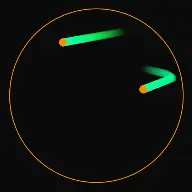
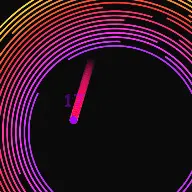
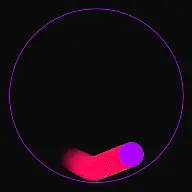
    Each mode has its own rules for how the balls move. Rhythmic, Escape, Accumulate, Drawer, Breaker, Spiral, Ghost Escape, Glass Tower, Flag Battle, Wave 3D and Marble Run 3D are released today, and more 2D and 3D modes are in development.

What people make with it

Satisfying ball video channels

Short vertical clips posted on a schedule, where the appeal is the motion itself rather than a narrative.

Long-form compilations

Several runs stitched into a longer YouTube video for background or study viewing.

Music visualisers

A song driven through the collision system. Each collision plays the next note of the song.

What a ball simulator actually needs to do

The physics part of a bouncing ball simulator is not difficult. Reflecting a velocity vector off a surface and applying a constant downward acceleration covers most of it, and a competent developer can build that in an afternoon. This is why there are so many free bouncing ball demos online and why almost none of them are useful for making video.

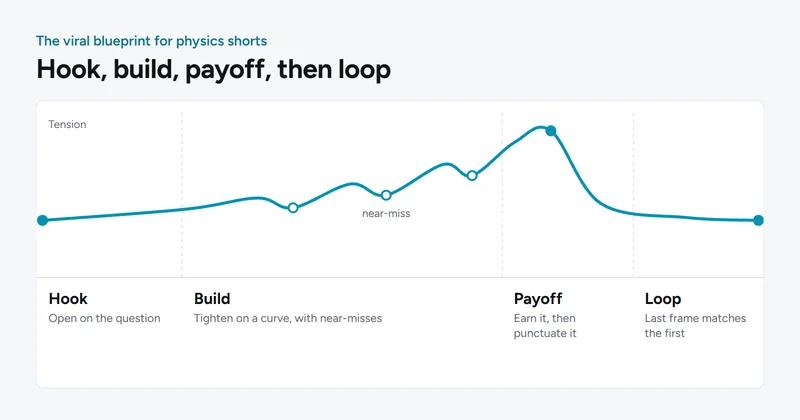
The hard part is control. A clip that holds attention needs the run to change over its duration, needs the collisions to line up with audio, and needs to end at a definite moment rather than trailing off. Those requirements are what separate a simulator you can publish from a simulator you can watch.

That is the gap this tool is built to close. Gravity and bounciness are exposed because they set the character of the motion, but so are speed build-up rate, population ceilings, size growth curves and note mapping, because those are what determine whether a finished export is worth uploading.
Choosing gravity and bounciness together

These two settings interact more than any other pair. Bounciness is restitution, the fraction of speed retained through a collision. At exactly 1.0 a ball returns to the same height every time. Below that it settles toward the floor of the container. Above it, the ball gains energy on every contact and the run accelerates without you setting any speed values at all.

Gravity determines how quickly the ball returns to a surface, which sets the collision rate. High gravity with low bounciness gives a fast, tight, percussive run. Low gravity with high bounciness gives long floating arcs with widely spaced impacts. If you are syncing to music, the collision rate is effectively your tempo, so it is worth setting gravity before you attach the audio.

A practical starting point for a music-synced run is gravity near the middle of its range with bounciness just under 1.0, then raising bounce randomness slightly so repeated impacts do not settle into an obvious repeating pattern.

Why population caps matter more than they look

Accumulate runs are the format most associated with bouncing ball video, and the instinct is to push the count as high as it goes. Max balls tops out at 500, and in a small arena the frame stops reading as individual balls well before that. Past that point you are rendering texture, and the viewer loses the thing that made the format interesting, which is watching a countable number of balls become an uncountable one.

Max balls and Wait between new balls are the two controls that shape this. The cap sets where the run plateaus, and the wait sets how fast it gets there, so the interesting middle section gets its full share of the clip. Setting both deliberately is usually the difference between a run that builds and a run that simply fills.

Frequently asked questions

Premium tools for serious creators who want to get paid.

Free to start. Every paid plan is monthly or yearly, and you can cancel anytime.

Save up to 60% yearly

Starter Studio

Try BallEngine and create your first videos.

Free

Forever

  • 5 exports per month
  • 720p HD rendering
  • Small watermark
  • 1 free cloud render
  • Email support

Creator

Videos nobody else is posting.

$29/ month

Tax incl.

Make original videos that stand out in the feed

  • Every setting unlocked
  • Commercial license
  • 30 exports per month
  • 20 cloud render credits

Elite

For teams running multiple channels.

$99/ month

Tax incl.

Post 10 videos a day with 2 team seats

  • 2 seats: you and 1 teammate
  • 300 exports per month
  • 100 cloud render credits
  • 200 GB cloud storage

Enterprise

More than 750 exports a month? Unlimited exports and priority support, priced for your team.

Contact us

We aim to reply within 24 hours.

We accept

Secure checkoutNo hidden feesCancel anytime

By subscribing, you agree to the Terms of Service and Refund Policy. Renews automatically until you cancel in Settings.

Compare plans

Every limit on every plan, in one table.

6 plans
Studio plans
Starter Studio
Free
Studio plans
Creator
$29/mo
Studio plans
Pro
$49/mo
Studio plans
Elite
$99/mo
Studio plans
Agency
$199/mo
Studio plans
Enterprise
Custom pricing
Studio
Studio accessStarter StudioCreatorProEliteAgencyEnterprise
Exports5 a month30 a month60 a month300 a month750 a monthUnlimited
Team seats11126By arrangement
Render quality720p1080p4K4K4K4K
Watermark removed
Custom watermark
Advanced physics settings
3D mode settings
Ball effects12421,200+1,200+1,200+1,200+
Cloud rendering
Cloud render credits per month1 trial2040100250By arrangement
Cloud render quality720p1080p1080p1080p1080p1080p
Music
Songs in the library, safe to monetize1,0001,0001,0001,0001,0001,000
Original tracks you can compose–1,00010,00010,00010,00010,000
Sound FX presets1250310310310310
Account
Cloud storage250 MB25 GB100 GB200 GB500 GB500 GB
Commercial license
Early access
SupportEmail supportPriorityPriorityPriorityPriorityPriority

Help articles

Every help article in one place.

Ready to start?

Sign up free and make your first video in the Studio.